Showing posts with label Python for Finance. Show all posts

Saturday, May 23, 2020

Python for Finance: Book Review

Python for Finance by Yves Hilpisch is an ambitious, reasonably priced book published by a reputable publishing house on the topic of Algorithmic Trading with Python. I think it provides an excellent starting point and ideas for people trying to get a grip on what it would take to set up an algorithmic trading infrastructure.

The book caters to intermediate and advanced level students, which means you would need at least some coding ability and a decent understanding of financial markets to be able to benefit from this book. Many topics touched upon merit a book on their own, therefore the text is practically brief with the intention of introducing the user to key concepts and further related resources. I especially like the way the author touches upon the theory without getting carried away, keeping the right balance between telling the reader what is happening without theoretical overload, all the while providing working Python examples. Most of the code used in the book can be found in its accompanying website.

Now for a detailed book review/ my advice on how to get the best out of it:
  • If you have experience with Python, you can skim through the first six chapters. Second chapter has some interesting information regarding infrastructure, but it is highly unlikely to be applicable to a single man retail trader army when you are starting up. At certain point you may need to host the development on cloud, for which learning to deploy Jupyter notebook server should suffice. If you are not familiar with Python object model, worth reading the summary in the end of Chapter 6
  • Chapter 7 to 13 digs into many tools and techniques that you may need as a quant. Even if you are an experienced quant, the chapters are still worth a quick read, even if only to get to ideas/validation on efficient Pythonic implementations of some useful mathematical tools. If your algorithms are going to be relatively simple and will not delve into complex derivatives, portfolio management or machine learning, you can more or less skip chapters 11, 12 and 13.
  • Chapter 14 to 16 is where, so to say, the tyre meets the road. For me, this is the highlight of the book as it details how the get tick data and trade using Python in the real world and backtest/ develop your strategy
  • I did not read chapter 17 onwards as I do not plan to do deal with trading and valuation of complex derivatives

Thursday, May 21, 2020

Getting FXCM Working With Python

While I will do a full review on Python for Finance once I am done with the book, enroute I will keep sharing some items I feel may be useful.

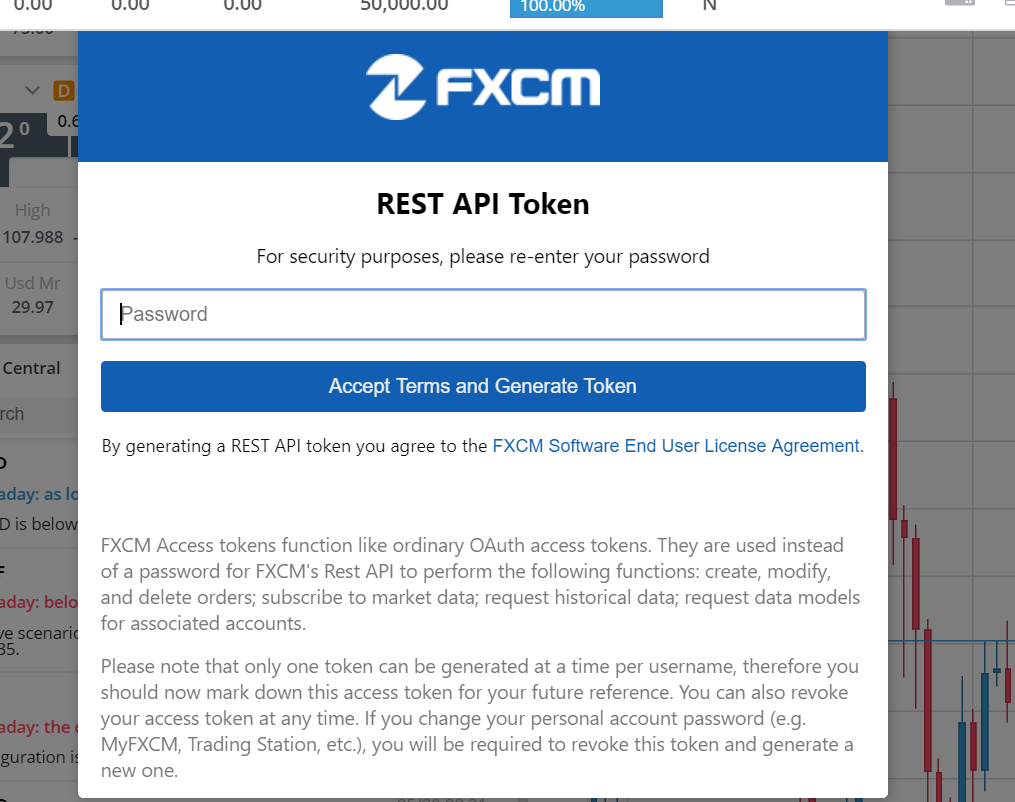
In chapter 14 the author demonstrates how a python program can connect to an online broker, FXCM. Just sharing detailed steps on how I got the API token.

1. Sign up for the demo account as suggested by the book. You will receive an email with a password.

2. Sign into your demo account, which for me looked as below:


3. Click the part highlighted in the picture above to bring up a context menu (shown below) and click “Token Management”.


4. You should see a dialog similar to the snapshot below. Enter the password you got on your email to generate the REST API token.


While the book recommends FXCM, I know that Oanda also provides a python wrapper. I won't be using FXCM as at the time of the blog it supported only currencies for algorithmic trading, while I was looking for indices. Only following currency pairs are supported:

('AUDCAD', 'AUDCHF', 'AUDJPY', 'AUDNZD', 'CADCHF', 'EURAUD', 'EURCHF', 'EURGBP', 'EURJPY', 'EURUSD', 'GBPCHF', 'GBPJPY', 'GBPNZD', 'GBPUSD', 'GBPCHF', 'GBPJPY', 'GBPNZD', 'NZDCAD', 'NZDCHF', 'NZDJPY', 'NZDUSD', 'USDCAD', 'USDCHF', 'USDJPY')

For fxcmpy to work, You would need the python-socketio installed.

Also, for In[1] on page 470, I could not get "from pylab import mpl, plt" to work. Changing to "from matplotlib.pylab import mpl, plt" fixed the problem for me.

Thursday, May 14, 2020

Setting up Docker on Windows

Further to the last blog, I am also summarising how I got Docker to work as mentioned in Python for Finance book.

The first problem I faced was that I was trying to build a linux container while I had built my text file in windows. After typing out and saving the file in the appropriate folder, I used Dos2Unix converter so that my files run without any issues.

Second, what does a dockerfile look like? What is the extension? I installed a sample container from docker installation and copied the dockerfile, which I then changed per book's instructions.
Finally, I edited the dockerfile provided by book a tiny bit to get to a version that worked for me. You can use the install file from previous blog minus the setup for Jupyter notebook server to accompany the dockerfile.

Wednesday, May 13, 2020

Setting up remote Jupyter Notebook

I have recently started reading the book Python for Finance. In chapter 2 the writer explains how to use Docker for professional development and Digital Ocean to run a remote Jupyter Notebook for cloud based development. The scripts provided in the book are good for linux but throw a host of problems when working with windows. Thought will compile a list of issues to watch for. Also the online portal for the book does not provide the scripts in a file, so providing those as well to save you some typing. I assume you have the book for reference.

Firstly, I was not able to use the script in example 2.5 to set up a Droplet. So, I followed the following steps:
  1. Used PuttyGen to generate an SSH key (see footnote on example 2.5 page)
  2. Add the public key to your Digital Ocean Account (Account>Settings>Security)
  3. Set up the Droplet as prescribed in the book, using the SSH key we added above
  4. Turn on your Droplet and open the console. Create a shell file using the editor of your choice which should look like this. Note this will ask for your input to create RSA keys.
  5. Bash the file as "bash install.sh"
  6. Under /root/.jupyter, you can update the jupyter_notebook_config.py file as per the guidance provided in the book. Activate the conda shell as "source activate -py4fi" and start the Jupyter notebook manually with command "jupyter notebook --allow-root". This should get you running. To turn off your droplet use "poweroff" command from the console to avoid any data loss.
AN issue I faced on digital ocean:
The command line interface can sometimes get stuck with caps lock such that whatever you write or paste is in CAPS

Also, I may point out that setting up a secure Jupyter server may be a bit more involved than what we see in the book, as you can find on the official website. I would advise looking at the auto-generated file, which is quite descriptive.

Trading212 ISA: A Brilliant Choice Brilliantly Ignored!

 As far as tax saving schemes are concerned, Stock & Shares ISAs are an amazing value for money for knowledgeable retail investors. £20,...